Apple & Google Calendar Sync Without Duplicates
Apple & Google Calendar can sync cleanly without duplicates if you treat one platform as the single “source of truth” and avoid connecting the same calendar through multiple paths. This guide explains the core principles, setup steps, and cleanup tips so your events stay in sync, not in double.
Why duplicate events happen
Most duplicate events appear because the same calendar is added twice or copied back and forth between services. Common causes include:
- Adding a Google account on iPhone, then also subscribing to the same Google calendar via an ICS link.
- Using more than one third‑party sync tool at the same time.
- Saving new events to different default calendars (Google vs iCloud) while displaying both together.
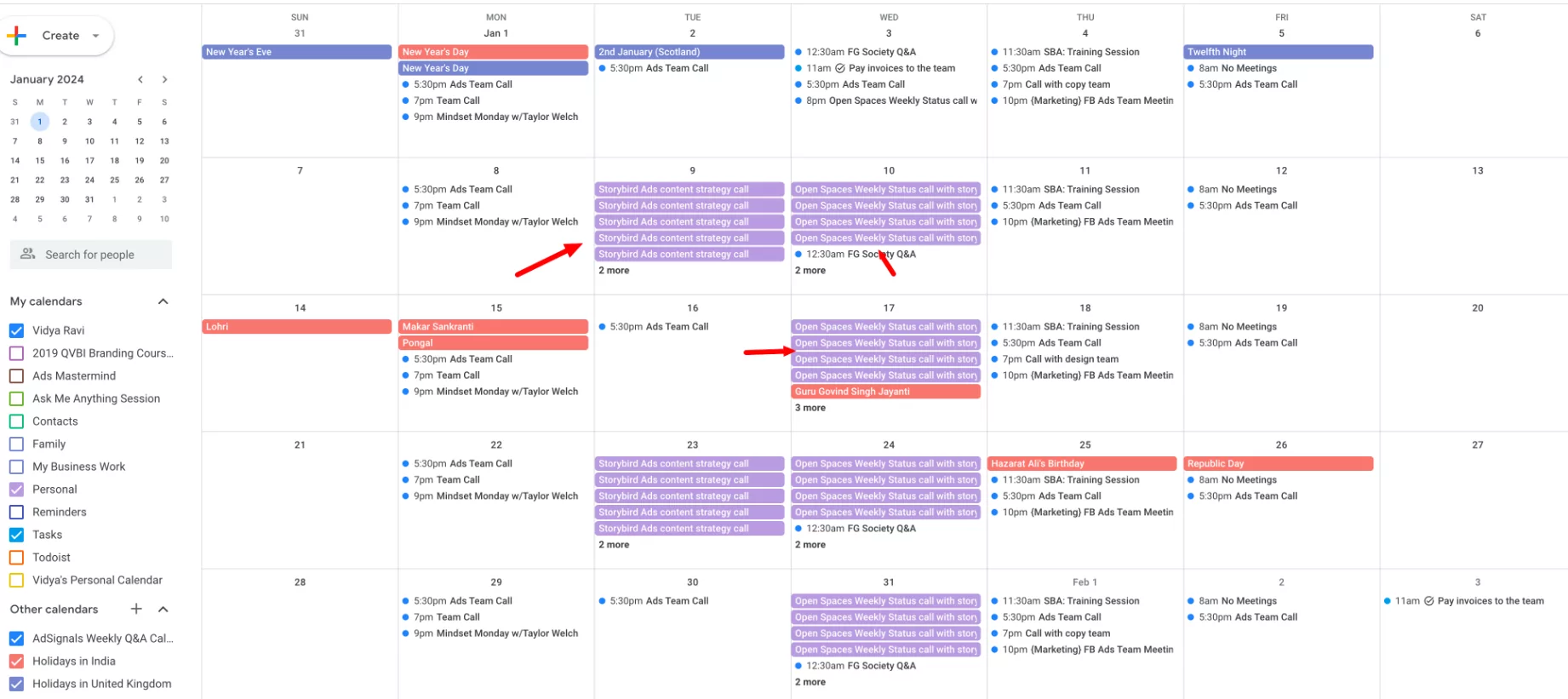
When two calendars contain identical events and are both visible, every event appears twice on your devices.
Strategy 1: Use Google as your main calendar
For many users, using Google as the main calendar and letting Apple just display it is the simplest and safest setup.
Steps on iPhone/iPad:
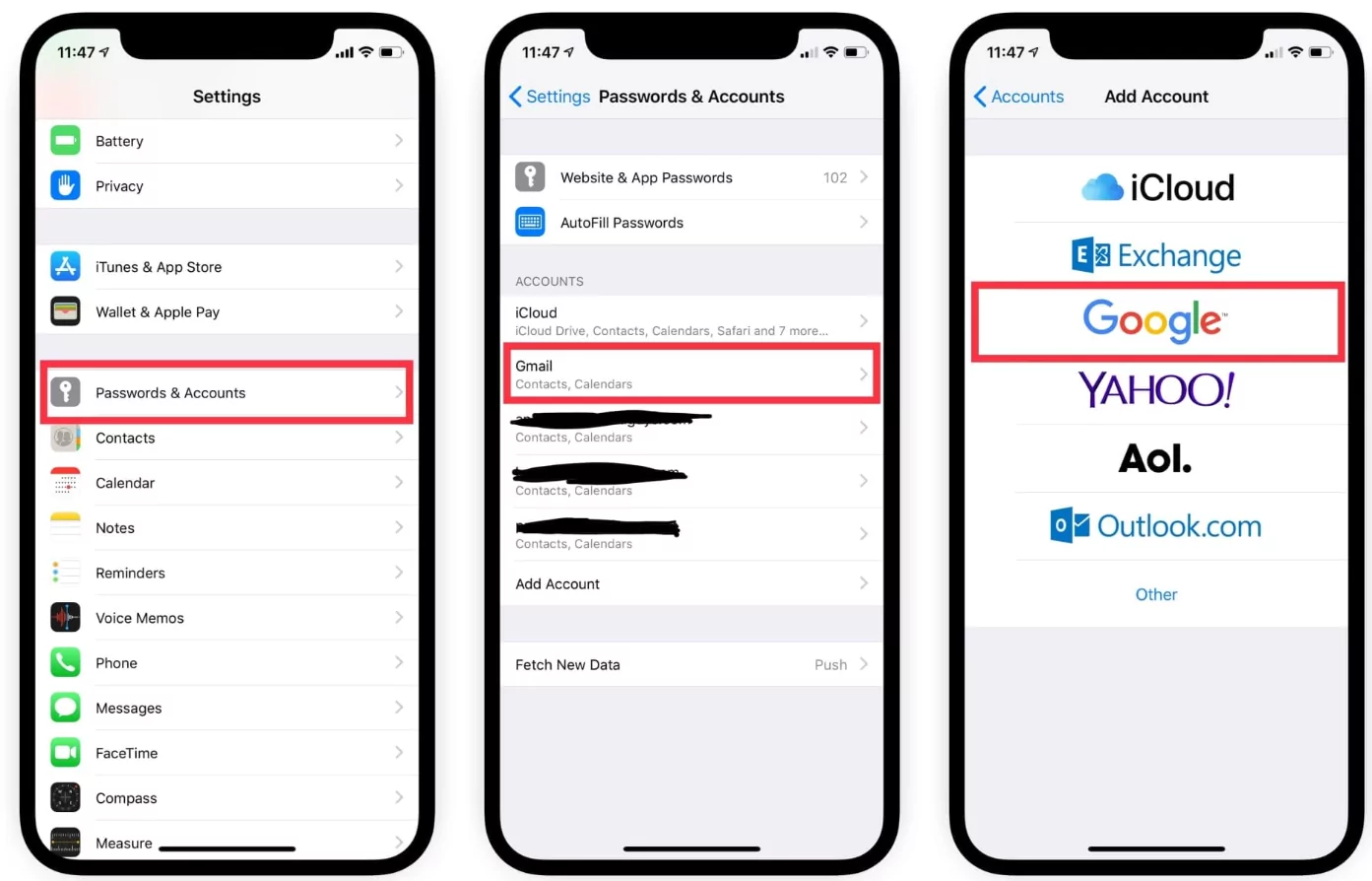
- Go to Settings > Calendar > Accounts and add your Google account if it is not there yet.
- Make sure the Google account is listed only once and that “Calendars” is turned on.
- If you do not really use iCloud Calendar, turn it off, or at least change Default Calendar (Settings > Calendar > Default Calendar) to one of your Google calendars.
- In the Apple Calendar app, open the list of calendars and hide any calendars you do not use to avoid visual clutter.
Steps on Mac (Apple Calendar app):
- Open Calendar > Settings > Accounts and add your Google account.
- Enable only the specific Google calendars you need.
- Avoid adding the same Google calendar again as a separate subscribed ICS feed.
With this approach, all events are created and stored in Google Calendar, while Apple Calendar acts as a viewer. That greatly reduces the chance of duplicates because there is only one true copy of each event.
Strategy 2: Use iCloud as your main calendar
If you prefer Apple’s ecosystem and mainly live in the Apple Calendar app, you can keep iCloud as the master calendar and only show it in Google.
Typical setup:
- Create and edit all events in iCloud on your iPhone, iPad, or Mac.
- Publish or share your iCloud calendar via URL, then add that URL into Google Calendar as a subscribed (read‑only) calendar.
- Do not also add the same Google account back to Apple Calendar for that calendar, otherwise Google may show events you already have in iCloud, effectively doubling them.
If you want two‑way sync (edit either side and keep both updated), you will usually need a dedicated sync service. Set it up carefully and make sure it has options to prevent duplicates and to choose a primary direction of sync.
How to prevent new duplicates
Once you choose a main calendar (Google or iCloud), use these habits and settings to keep your setup clean:
- Use only one sync route:
- Remove old or experimental connections that also move events between Apple and Google.
- Avoid running multiple sync apps that touch the same calendars.
- Remove old or experimental connections that also move events between Apple and Google.
- Check default calendar settings:
- On iPhone: Settings > Calendar > Default Calendar – point this to your chosen main calendar.
- In Google Calendar: ensure new events are created under the main calendar, not under temporary or outdated calendars.
- On iPhone: Settings > Calendar > Default Calendar – point this to your chosen main calendar.
- Hide overlapping calendars:
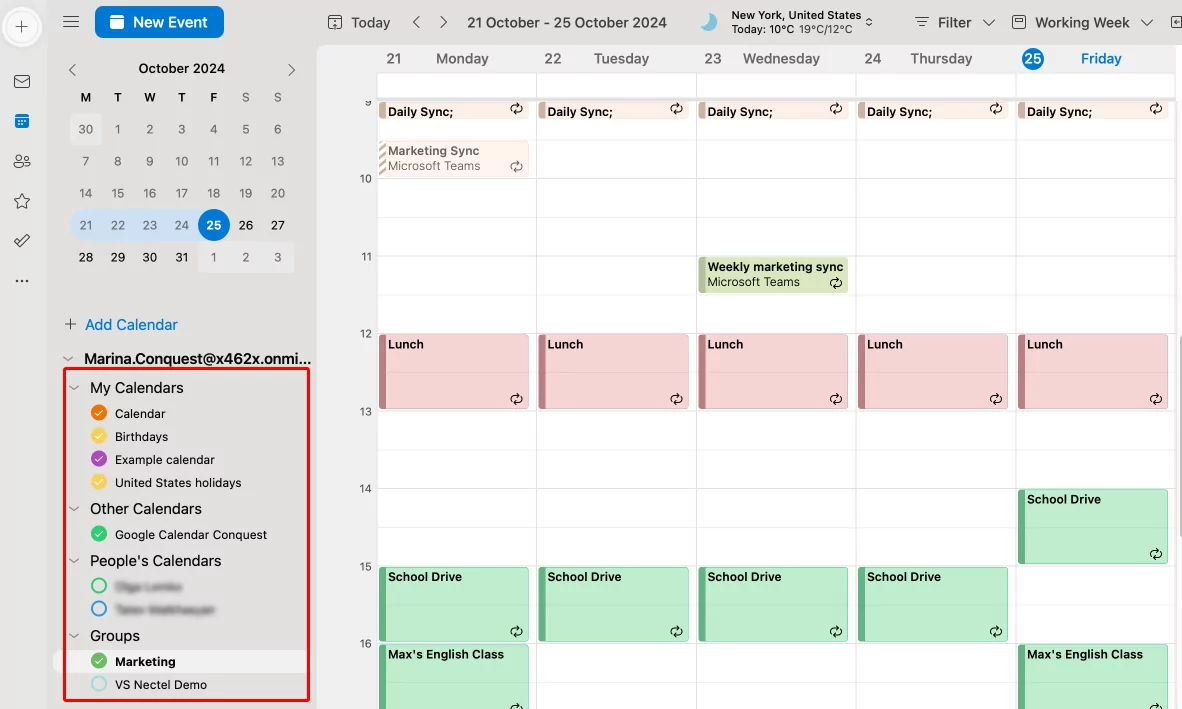
- In the Apple Calendar and Google Calendar apps, uncheck or hide calendars that contain mirrored copies of the same events.
- Only keep one version visible for everyday use.
- In the Apple Calendar and Google Calendar apps, uncheck or hide calendars that contain mirrored copies of the same events.
- Test new tools slowly:
- When trying a new scheduling or sync tool, connect it to one calendar first.
- Watch for duplicate behavior before you connect extra calendars or accounts.
- When trying a new scheduling or sync tool, connect it to one calendar first.
Cleaning up existing duplicate events
If your calendars are already full of duplicates, do a one‑time cleanup, then simplify your sync setup afterward.
Recommended steps:
- Make a backup:
- Export your main calendar (Google or iCloud) to an ICS file and store it safely.
- This allows you to restore events if something goes wrong.
- Export your main calendar (Google or iCloud) to an ICS file and store it safely.
- Temporarily disable extra sync:
- Turn off secondary accounts or sync services on your devices so duplicates do not instantly re‑create themselves.
- Leave only your main calendar active during cleanup.
- Turn off secondary accounts or sync services on your devices so duplicates do not instantly re‑create themselves.
- Clean in one place:
- Use Google Calendar on a desktop browser or Apple Calendar on Mac, depending on which you set as the master.
- Use search and sorting to find obvious duplicates (same title, time, and calendar) and remove them.
- For large calendars, consider a specialized duplicate‑removal tool that can scan and delete repeated events in bulk.
- Use Google Calendar on a desktop browser or Apple Calendar on Mac, depending on which you set as the master.
- Re‑enable sync step‑by‑step:
- Turn sync connections back on one at a time (for example, first iPhone, then iPad, then third‑party apps).
- After each step, check whether duplicates return. If they do, adjust or remove the connection that caused them.
- Turn sync connections back on one at a time (for example, first iPhone, then iPad, then third‑party apps).
Practical tips to keep Apple & Google Calendar in sync
- Decide clearly which service is your master: Google Calendar or iCloud. Create and edit events there by default.
- On every device, set the default calendar to that master calendar, so new events always go into the same place.
- Limit yourself to one sync app or workflow that connects Apple and Google, not several at once.
- Periodically review your list of calendars and remove or hide old, unused, or test calendars.
- When you receive ICS invitations (for flights, meetings, webinars), always add them to your chosen primary calendar rather than letting them scatter into separate local calendars.
By choosing a single main calendar, avoiding double connections, and doing a one‑time cleanup, you can keep Apple & Google Calendar syncing smoothly without duplicate events cluttering your daily schedule.
Frequently Asked Questions: Apple & Google Calendar Sync Without Duplicates
Duplicate events usually appear because the same calendar is connected in more than one way, such as adding a Google account on your iPhone and also subscribing to the same Google calendar via an ICS link. It can also happen if you use multiple sync apps or save new events to both iCloud and Google while viewing them together.
Choose whichever ecosystem you use most. If you rely heavily on Gmail, Android, or Google Workspace, make Google Calendar your main calendar and let Apple Calendar display it. If you mostly live in the Apple ecosystem, use iCloud as your main calendar and only show it inside Google Calendar as needed.
First, set a single default calendar on each device so all new events are created in one master calendar. Second, remove extra or experimental sync connections that copy events between Apple and Google in more than one way. Finally, hide or disable any calendars that contain mirrored copies of the same events so you only see one version.
Two‑way sync is possible, but you must keep it controlled. Use only one tool or method that manages two‑way sync and duplicate detection, and avoid adding the same calendars directly in multiple apps. If several services are moving events back and forth, they often create duplicate copies over time.
Start by exporting your main calendar as a backup file. Then temporarily turn off extra sync connections so duplicates don’t instantly re‑create themselves. Next, clean up events in one place (for example, Google Calendar on desktop), deleting repeated events with the same title, time, and calendar. When you are done, turn sync back on one connection at a time and watch for any new duplicates so you can adjust that connection if needed.

